Model Context Protocol (MCP) is an open communication standard that connects AI systems (Claude, ChatGPT, Cursor) to local filesystems, external databases, and cloud services.
In this beginner's guide, we'll examine how MCP connectors work under the hood, walk through setting up your first Filesystem Server in Claude Desktop, troubleshoot common errors, and review the most useful connectors available today (from Notion and Figma to Supabase and GitHub).
1. What is MCP and How Does It Work
The simplest and most accurate analogy: MCP is like a USB-C port for Artificial Intelligence.
Before USB-C, every hardware manufacturer used proprietary cables, adapters, and chargers. A similar fragmentation existed in AI: developers had to build bespoke integrations for every model, chat client, and SaaS tool. MCP solves this problem once and for all by providing a single, standardized protocol.
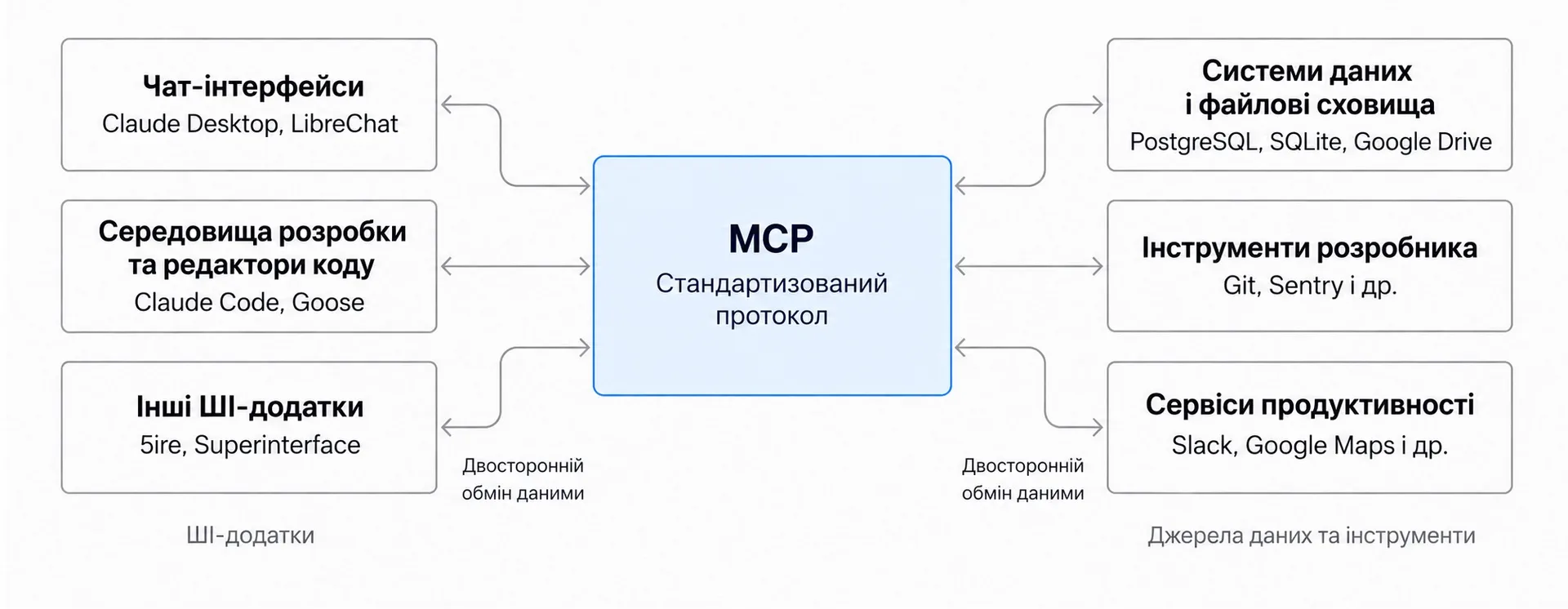 Standardized Model Context Protocol (MCP) Architecture
Through MCP, an AI model gains access to three core capabilities:
- Data Sources (Resources) — Reading local files, database records, notes, or cloud storage contents.
- Executable Tools (Tools) — Running web searches, performing calculations, posting webhooks, or executing scripts.
- Workflow Prompts (Prompts) — Pre-configured contextual templates that streamline complex, multi-step operations.
Thanks to MCP, AI assistants evolve from passive text generators into capable digital agents that interact directly with your actual working environment.
2. Why MCP is a Game Changer
The core value of MCP lies in shifting from passive question answering to active workflow automation.
Real-World Use Cases
- Personal Productivity Assistant: An agent connects to Google Calendar and Notion, finds available schedule openings, and drafts your weekly meeting agenda autonomously.
- Design to Code: Claude Code or Cursor reads design files directly from Figma via MCP and outputs production-ready, responsive React components.
- Enterprise Analytics: Chatbots connect to multiple internal PostgreSQL databases and Google Drive folders, allowing team members to query corporate data directly in chat.
- Digital Prototyping: A model crafts a 3D asset in Blender and transmits it directly into a 3D printing queue.
Benefits by Role
| Audience | What MCP Delivers |
|---|---|
| For End Users | A far more capable assistant that accesses notes, spreadsheets, and calendar slots without manual copy-pasting |
| For Developers | Build an integration once and have it work immediately in Claude, Cursor, VS Code, and LibreChat |
| For Businesses & Teams | Securely connect internal data sources (CRM, ERP, SQL) to AI workflows with enterprise-grade access controls |
3. Where MCP is Currently Supported
MCP is an open-source initiative led by Anthropic and supported by an expansive community of independent developers and SaaS platforms.
Client Ecosystem
- Desktop AI Clients: Claude Desktop, LibreChat, Goose, 5ire, Superinterface.
- Developer Tools & Editors: Claude Code, Cursor, Visual Studio Code (via extension), Windsurf, Codex.
- Testing & Debugging Tools: MCPJam, MCP Inspector.
Because the protocol is open and standardized, a connected server behaves identically whether you interact with it in Claude Desktop or through your coding editor.
4. Step-by-Step Setup: Filesystem Server in Claude Desktop
Let's walk through a practical installation using the Filesystem Server — the official server that gives Claude Desktop read/write access to specific local directories.
Prerequisites
- Claude Desktop: Download and install the application for macOS or Windows. Ensure you are running the latest release (
Claude→Check for Updates…). - Node.js (LTS Version): Most MCP servers require Node.js. Check your terminal:
If Node.js is missing, install the stable LTS release from nodejs.org.
Step-by-Step Configuration
Step 1. Open Developer Settings
In Claude Desktop, open application settings:
- On macOS: click
Claudein the system menu bar →Settings…. - On Windows: click the settings gear in the application window.
Select the Developer tab from the left sidebar.
Step 2. Open the Configuration File
Click the Edit Config button. This opens or creates your claude_desktop_config.json file:
- macOS:
~/Library/Application Support/Claude/claude_desktop_config.json - Windows:
%APPDATA%\Claude\claude_desktop_config.json
Step 3. Add Server Configuration
Choose the configuration for your operating system:
json{ "mcpServers": { "filesystem": { "command": "npx", "args": [ "-y", "@modelcontextprotocol/server-filesystem", "/Users/username/Desktop", "/Users/username/Downloads" ] } } }
Make sure to replace username with your real system username. Only list directories you feel comfortable granting Claude access to.
Step 4. Configuration Schema Breakdown
| Key | Value | Purpose |
|---|---|---|
"filesystem" | Server Name | A descriptive label that will appear in the Claude Desktop UI |
"command": "npx" | Command | Executes the npx runner included with Node.js |
"-y" | Auto-Confirm | Bypasses confirmation prompts when downloading the npm package |
"@modelcontextprotocol/server-filesystem" | Package | The official filesystem server npm package |
"/Users/..." | Directory Paths | Whitelist of absolute filesystem paths exposed to the model |
Step 5. Restart Claude Desktop
Completely quit the application (Cmd + Q on macOS or close via system tray on Windows) and relaunch it.
5. How to Use Your Connected Server
Once restarted, look for the connectors icon (a hammer or slider icon) in the bottom-left corner of the Claude Desktop chat bar:
- Click the tool icon in the bottom-left corner of the chat input.
- Navigate to Connectors → Manage connectors.
- Confirm that the
filesystemserver shows an active status indicator.
Example User Prompts
- "Scan my Desktop and organize all screenshot image files into a new folder named 'Screenshots'."
- "Check my Downloads folder and list any invoices or receipts downloaded during the past 30 days."
- "Create a new file named project-roadmap.md on my Desktop containing a summary of our architecture discussion."
Human-in-the-Loop Confirmation:
Before performing any destructive disk operation (writing, updating, or moving files), Claude Desktop prompts you for approval. You will see the exact target file path and can accept or reject the action at will.
6. Troubleshooting Common Issues
If your server fails to load or shows an error state, use this diagnostic checklist:
1. JSON Syntax Validation
Trailing commas and missing brackets in claude_desktop_config.json are the most frequent cause of errors. Ensure all JSON brackets match and Windows paths use double backslashes (C:\\Users\\...).
2. Inspecting Log Files
Check Claude's diagnostic log output:
- macOS:
~/Library/Logs/Claude/ - Windows:
%APPDATA%\Claude\logs\
Stream real-time log events:
3. Running the Server Manually
Verify that Node.js permissions are functional by executing the command directly in your terminal:
If you encounter an npm permissions error, update your global npm installation:
4. Resolving Windows APPDATA Paths
Some community servers (such as Brave Search) require explicitly passing system paths inside the env dictionary:
7. Popular Everyday MCP Connectors
The filesystem server is just the beginning. The greatest productivity gains come from connecting services you use every day.
| Connector | Type | Primary Domain | Core Capabilities |
|---|---|---|---|
| Notion | Remote MCP / OAuth | Knowledge & Notes | Reading pages, searching documents, generating tables |
| GitHub | Hosted / OAuth | Code Repositories | Inspecting issues, managing pull requests, searching code |
| Figma | Remote MCP | UI/UX Design | Reading components, extracting styles, generating UI code |
| Linear | OAuth / Remote MCP | Project Management | Creating and updating issues, tracking sprint backlogs |
| Higgsfield & Runway | Hosted MCP | Generative Media | Video synthesis and animation directly from chat |
1. Notion MCP — Knowledge Base Integration
Connects with a few clicks via OAuth. Claude reads pages, cross-references internal documentation, and updates project databases without leaving the conversation.
2. GitHub MCP Server — Codebase Intelligence
Maintained officially by GitHub. Allows the assistant to inspect commits, summarize pull request discussions, and locate specific function implementations across repositories.
3. Figma MCP — Bridging Design and Code
Enables Claude Code or Cursor to read layers, tokens, colors, and layout constraints from Figma files, turning mockups into React/Tailwind code with zero friction.
4. Linear MCP — Issue Tracking
The assistant finds related bugs, updates ticket status in active cycles, and creates structured bug reports based on terminal error logs.
5. Higgsfield & Runway MCP — Media Generation
Cloud connectors providing access to leading video models (Sora, Kling, Gen-3). Authenticates via your existing account without needing raw API keys.
8. Advanced Connectors: Databases and Infrastructure
For engineering teams, MCP unlocks direct connectivity to cloud databases and infrastructure:
1. Supabase MCP
Connects models to remote PostgreSQL databases. Generates schemas, runs SQL queries, performs test migrations, and reviews query execution logs in staging environments.
2. Cloudflare MCP
Inspects DNS records, monitors Worker traffic, and configures Cloudflare edge security rules via natural language prompts.
3. MiniMax MCP
Multi-modal connector for audio engineering: voice cloning, text-to-speech synthesis, and ambient music generation.
9. Security Best Practices
Because MCP servers have access to local disks and network APIs, adhere to these security rules:
1. Principle of Least Privilege
Never expose your root directory (/ or C:\). Restrict paths strictly to active project folders (~/Projects or ~/Downloads).
2. Environment Isolation
Avoid granting write access to production databases. Use local Docker containers or staging replicas for experimentation.
3. Secret Management
Store tokens in separate user configuration files and never commit API keys to public git repositories.
10. Summary and Getting Started Checklist
Model Context Protocol is rapidly becoming the universal standard for autonomous agents. If you are just starting out, follow this simple roadmap:
Beginner Roadmap
- Step 1: Local Start. Set up
Filesystem Serverin Claude Desktop using the instructions above to get comfortable with tool confirmation dialogs. - Step 2: Connect Cloud Tools. Add one service you already use every day — Notion, GitHub, or Linear.
- Step 3: Advanced Automation. Transition to database integrations (Supabase) or build your own custom MCP servers for proprietary internal APIs.